
Google Business Profile: How to Set It Up for Your Business
A Google Business Profile is the free listing that shows your business on Google Search and Google Maps — your name, address, hours, phone number, photos, services, and customer reviews, in the panel people see when they search for your business or for what you do. Setting it up properly takes an afternoon, costs nothing, and gives every local customer a clear, trustworthy first impression before they ever reach your website. This guide walks through the whole setup, step by step: creating or claiming your profile, verifying it, completing every section, adding photos, handling reviews, and keeping it accurate — and it explains how the profile fits with your website rather than replacing it. For the wider picture of how your business appears online, see our companion guide to online presence management; this page is the deep dive on Google itself.
Last updated: November 26, 2026
What a Google Business Profile is
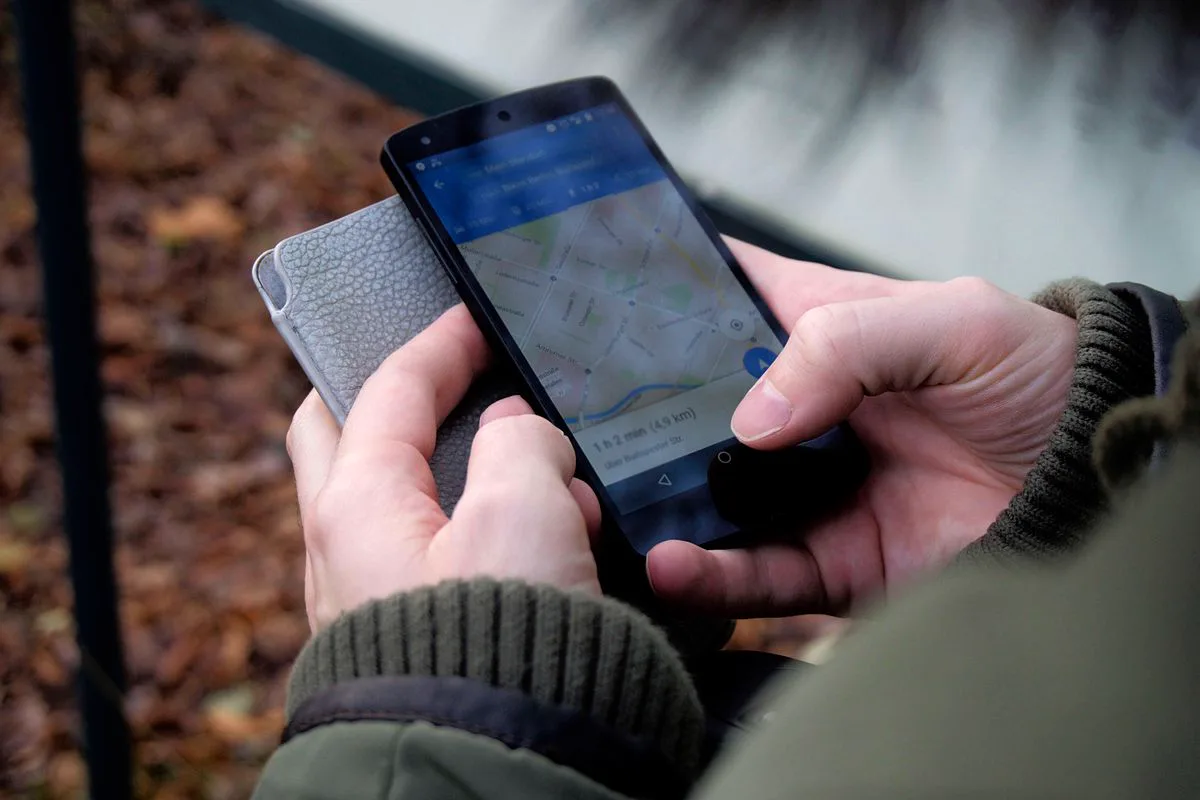
A Google Business Profile is the listing Google shows for a business in Search and Maps. When someone searches for your business name, or for a service near them, the profile is what appears: the business name, category, address or service area, opening hours, phone number, website link, photos, and reviews. Customers can call you, get directions, visit your website, ask questions, and leave reviews directly from it.
It is not a website, and it is not a social media account. A website is the place you control completely — your content, your design, your words. A Business Profile is a listing on Google’s platform: you manage the information, but Google sets the format and the rules. The two work together: the profile is often the first thing a customer sees, and the website is where they go to learn more and buy or book. A strong profile with a weak website loses customers at the second step; a strong website with no profile may never be found.
Profiles are for businesses that serve customers directly — shops, restaurants, salons, tradespeople, clinics, and service businesses that visit customers at their location. Google’s help pages state that only businesses eligible for a Business Profile can add or claim a location, and that you can add or claim your business at no charge. If your business is purely online with no local presence or service area, a profile may not be the right channel.
Why it matters for local visibility
When people need a local business, they usually start with a search: a plumber near them, a café open now, a dentist taking new patients. The Business Profile is what Google shows in that moment — before the organic website results, and alongside a map. A complete, accurate profile means the customer can see at a glance that you exist, what you do, when you are open, and how to reach you. An incomplete or outdated one means they may call a closed shop or choose a competitor whose listing answers their question.
The profile also carries your reviews, which many customers read before deciding. A business with recent, genuine reviews and thoughtful replies looks active and trustworthy; a business with no reviews, or with unanswered complaints, raises doubts. The profile is therefore not a one-time setup job — it is a small, regular part of running the business.
None of this needs invented statistics to justify. The reasoning is practical: customers search on Google, the profile is what they see, and accurate information plus visible reviews removes friction from their decision.
Before you start: gather what you will need
Prepare these before you open the setup flow, so you can complete it in one sitting instead of stopping to look things up.
- Your exact business name. Use the name customers know — the name on your shop sign, your invoices, and your website. Do not add extra keywords or slogans that are not part of the real name.
- Your category. Choose the category that best describes what you do, such as “Plumber,” “Bakery,” or “Hair salon.” You can add more categories later, but the first one matters most — it should be your main service, not a long list of everything you might do.
- Your address and service area. If customers visit you, you will need the full address. If you visit customers, you will need the areas you serve. Decide this before you start.
- Phone number and website. The number customers should call, and your website address. Use a number you actually answer during business hours.
- Opening hours. Your regular hours, including any days you are closed. Note seasonal or holiday hours separately.
- Photos. A few good photos ready on your phone or computer: the outside of your premises, the inside, your team at work, and your products.
- A Google account. Use a business Google account that you control, not a personal account an employee might take with them when they leave. If several people will manage the profile, the owner account should belong to the business.
One more decision to make in advance: who owns the profile. Only one Google account is the primary owner. That account can add managers, but ownership matters if the business is sold or if the person who set it up leaves. Set it up under a business account from the start.
Step 1: Create or claim your profile
Google’s own help page, “Add or claim your Business Profile,” describes two situations: your business does not have a profile yet, or one already exists and you need to claim it.
If no profile exists, add your business. Google’s help page directs you to business.google.com/add, where you click “Add your business to Google” and follow the on-screen instructions: enter the business name, choose the category, say whether customers visit a location or you serve them at their location, and add the address or service area and contact details. Answer each question accurately — the information you enter here becomes the core of the profile.
If a profile already exists, claim it. Many businesses discover that Google, or a customer, has already created a listing for them. Google’s help page explains how to claim an unverified profile from Google Maps: open Google Maps on your computer, search for your business name and city, select “Claim this business” and then “Manage now,” and choose a verification option. You can also do this from the Google Maps app. If the profile has already been verified by someone else, you will need to request ownership from the current owner — follow Google’s process rather than creating a duplicate listing. Duplicates confuse customers and split your reviews, so never create a second profile for the same business at the same address.
After the basic details are entered, Google will ask you to verify the business — the next step, covered below.

Step 2: Verify your business
Verification is how Google confirms that your business is real and that you are authorised to manage its profile. Google’s help page “Verify your business on Google” states the key point plainly: verification methods are automatically determined by Google and cannot be changed. You do not get to choose your method — Google offers the options available for your business type, public information, region, and opening hours.
The methods Google describes are:
- Video recording. If you are eligible, Google recommends this option. You record a video on your phone through the profile, showing your business location, signage, and proof that you operate there. It cannot be prerecorded on a desktop — it must be recorded live on a mobile device.
- Phone or text. Google calls or texts a code to your business phone number. You enter the code on your profile. Google notes that automated phone menus (IVR systems) will not receive the code — you must be able to answer the business phone yourself.
- Email. If eligible, Google sends a code to the business email address shown on the verification screen. Make sure you can open that email address immediately.
- Live video call. A Google representative verifies your business in real time through a video call, during your listed opening hours.
- Postcard by mail. Google mails a postcard with a verification code to your business address. This is not available for all businesses, and Google describes it as the least available method. The code is five digits, and Google states that verification codes expire after 30 days — so enter it as soon as the postcard arrives.
After you complete the verification steps, Google reviews the information you provided. Google’s help page states that verification reviews take up to five working days, and in some cases a profile can be verified instantly — for example, when you have already verified your website with Google Search Console. While you wait, do not change the business name, address, or category, because edits during review can delay or restart the process. If verification fails, read Google’s message carefully: the usual causes are a mismatch between the profile and the real business — a name that is not on the sign, an address customers cannot visit, or a video that does not show what Google asked to see. Fix the mismatch and try again.
Businesses with ten or more locations can use bulk verification, which Google describes as a way to verify multiple profiles at once once the account is approved for it.
Step 3: Complete every section of the profile
Verification unlocks full control. Now complete the profile properly — a half-finished profile is little better than no profile.
Business description
Write a short description in your own words: what you do, who you serve, and what makes you worth choosing. Keep it factual and specific. “Family-run bakery in Austin, baking sourdough and pastries fresh every morning since 2016” tells a customer far more than “best bakery in town.” Avoid keyword stuffing, slogans, and claims you cannot support.
Categories and services
Your primary category should be the most specific accurate description of your main service. Then add secondary categories only for services you genuinely offer. List your services with short descriptions and, where it makes sense, prices — but only prices you are willing to stand behind. Outdated prices on a profile are worse than no prices.
Hours, including special hours
Enter your regular hours accurately, and update them for holidays, seasonal changes, and temporary closures. Few things damage trust faster than a customer arriving at a closed shop that Google said was open. If your hours vary, set each day individually rather than copying one schedule across the week. Check the hours on the profile itself after saving, because it is easy to enter the wrong day by mistake.
Contact details and attributes
Add every way a customer can reach you: phone, website, and any booking or ordering link you use. Then work through the attributes — details such as wheelchair access, outdoor seating, or free Wi-Fi. Only select attributes that are true. Attributes help customers who care about those details, and they help Google show your profile for relevant searches.

Step 4: Add photos that show the real business
Photos are the most-viewed part of most profiles. A customer deciding between two similar businesses will often choose the one whose photos show a clean, real, welcoming place. Google’s help pages for managing Business Profile photos describe photos and videos as a core part of the profile, and the principle is simple: show the truth.
Start with the essentials: the outside of your premises from the street, so customers can recognise it when they arrive; the inside, showing the space customers will enter; your team at work; and your products or typical results. Add a logo and a cover photo that represents the business well. Use recent, well-lit photos taken at the business — not stock photos, and not heavily edited images that mislead.
Keep adding photos over time. New photos signal that the business is active. Add photos when you redecorate, launch a new product, or finish a notable job. Remove photos that are out of date — a photo of a menu, a price list, or a team member who left years ago misleads customers. Ask yourself of every photo: would a customer who walks in tomorrow recognise this place from this picture? If not, replace it.
Step 5: Reviews — earning them and replying to them
Reviews are the part of the profile you do not control, and the part customers trust most. You cannot write your own reviews, and you must never invent them, pay for them, or offer rewards for them — fake reviews mislead customers and can get the profile penalised. The honest way to earn reviews is to ask satisfied customers, at the right moment: after a good meal, a finished job, or a smooth appointment, when the experience is fresh. Make it easy — a short message with a link to the profile — and ask once, politely. Our guide to finding your first customers covers how early reviews help a new business build trust from nothing.
Reply to reviews, good and bad, and reply as the business, not as an individual arguing a case. Thank customers who left kind reviews, briefly and specifically — mention the service they praised, so the reply reads as genuine. For negative reviews, stay calm and professional: acknowledge the problem, apologise for the experience, and invite the customer to contact you directly to put it right. Never argue, never reveal a customer’s private details, and never blame the customer in public. Other customers read your replies as much as the reviews themselves, and a graceful reply to a complaint often impresses them more than a perfect five-star record.
If you receive a review that breaks Google’s rules — spam, a review from a competitor, or content that is not about a real customer experience — you can report it through the profile. Google decides whether to remove it. Do not report genuine negative reviews simply because you dislike them.

Posts, questions and answers, and messages
Once the profile is complete, Google gives you tools to keep it alive. Use the ones that fit your business, and ignore the ones that do not.
Posts. Short updates on the profile — a new product, a seasonal offer, an event, or a change in hours. A post is a small announcement, not a blog article: one photo, a few sentences, and a link if relevant. Post when you have something real to say, not on a schedule that forces filler.
Questions and answers. Customers can ask questions on your profile, and anyone — including other customers — can answer them. Check the questions regularly and answer them yourself, accurately and promptly. You can also add your own frequently asked questions and answer them. Wrong answers left standing mislead future customers, so this section needs the same attention as reviews.
Messages. You can let customers message the business directly from the profile. Only turn this on if you will answer promptly during business hours. An unanswered message is worse than no messaging option. If you cannot staff it, leave it off and let customers call instead.
Keeping the profile updated — and common mistakes
A profile goes stale quietly. Put a short monthly check in the calendar: hours, phone number, website link, services, photos, unanswered reviews, and unanswered questions. Check it after anything changes — a move, a new phone number, new hours, a new service, a price change.
Common mistakes to avoid:
- Keyword-stuffing the business name. Adding extra words to the name to rank for more searches breaks Google’s rules and can get the profile suspended. Use the real name.
- Creating duplicate profiles. One business, one profile per location. Duplicates split reviews and confuse customers.
- Wrong or stale hours. Customers who arrive at a closed shop rarely come back. Update holiday and seasonal hours in advance.
- Ignoring reviews and questions. Unanswered reviews and questions signal that the business is not paying attention.
- Using stock photos. Customers trust photos of your real premises, team, and work. Stock photos mislead them.
- Listing services you do not offer. Extra categories and services may bring clicks, but they bring the wrong customers — and disappointed ones leave bad reviews.
- Letting a former employee keep control. Make sure the primary owner account belongs to the business, not to an individual who may leave.
- Forgetting the website. The profile sends customers to your website; if the website is out of date, slow, or missing the information the profile promises, the customer is lost at the last step.

How the profile fits with your website
The profile and the website have different jobs, and a small business needs both. The profile answers the immediate questions — are you open, where are you, how do I contact you, what do other customers say — in the place customers search. The website answers the deeper questions: your full range of services, your prices, your story, and your booking or ordering system. Our guide to SEO for small business explains how your website earns visibility in search results, and the profile supports that work rather than replacing it.
Keep the two consistent. The business name, address, phone number, hours, and services should match exactly on the profile and the website. Inconsistencies confuse customers and make both listings look less reliable. When you change hours, prices, or services, update both on the same day. For the broader plan, see our small business marketing plan guide, and if you are just starting out, our guide to starting a small business covers the foundations both rest on.
Related guides
- Online Presence Management for Small Business
- SEO for Small Business
- How to Create a Small Business Marketing Plan
- How to Find Your First Customers
FAQ
What is a Google Business Profile?
A Google Business Profile is the free listing that shows your business on Google Search and Google Maps, with your name, category, address or service area, hours, phone number, website, photos, and customer reviews.
Is a Google Business Profile free?
Yes. Google states that you can add or claim your business at no charge. There is no fee to create the profile, verify it, or manage it. Be wary of anyone charging you to “set up” a profile — the setup itself is free.
How do I create a Google Business Profile?
Go to business.google.com/add, click “Add your business to Google,” and follow the on-screen instructions: enter the business name, category, location or service area, and contact details. If a profile already exists, claim it from Google Maps instead of creating a duplicate.
How do I verify my Google Business Profile?
Select “Get verified” on your profile and complete the method Google offers you: a video recording, a phone call or text, an email, a live video call, or a postcard by mail. Google decides which methods you see.
How long does verification take?
Google states that verification reviews take up to five working days after you complete the verification steps, and in some cases a profile can be verified instantly. Postcard codes expire after 30 days, so enter the code as soon as the postcard arrives.
Can I have a profile if I do not have a shop or office?
Yes, if you serve customers at their location — for example, as a plumber, cleaner, or mobile service. You can set up a service-area profile that shows the areas you serve instead of a street address.
How do I get more reviews on my Google Business Profile?
Ask satisfied customers at the right moment — after a good meal, a finished job, or a smooth appointment — and make it easy with a link to the profile. Never invent reviews, pay for them, or offer rewards for them. Reply to the reviews you receive promptly and professionally.
Sources
- Google Business Profile Help, “Add or claim your Business Profile” — https://support.google.com/business/answer/2911778 — 26 November 2026.
- Google Business Profile Help, “Verify your business on Google” — https://support.google.com/business/answer/7107242 — 26 November 2026.
- No statistics about the impact of Business Profiles are quoted in this guide, because such figures vary by business and source — the guidance here follows Google’s own help pages and general practice.
This article is general educational information, not legal, tax or financial advice. See our disclaimer.